Posted in Uncategorized

Music is the ultimate single-sourcing resource

A few years ago, I wrote an article for someone else about how music was used in remixes and mashups, but it never got published. Even so, I was reminded of how music has a lot of reuse due to two events that happened to me over this past weekend.

First, I went to a concert given by the Princeton Symphony Orchestra. The pieces that were played were Tchaikovsky’s 1812 Overture and Beethoven’s Ninth “Choral” Symphony. About an hour before the concert, the maestro/conductor held a little talk about the pieces, giving some history and other notes about the pieces. He mentioned that both pieces were reflections of the times, in that the music reflected the turmoil that was going on in Europe during the early 19th century. But what also struck me–and what I listened for–was the reuse of music to reflect some of the action or feelings of the time. In the 1812 Overture, for example, they played the original Russian version, which begins with a Russian Orthodox chant. Later, you hear the French National Anthem several times repeated over and over to reflect Russian and French forces at odds. Beethoven also used bits of well-known (at the time) country songs that were reflected in each movement.

Second, I started to watch an excellent program on television about the Beatles. It was on very late, and my husband and I–who are big Beatles fans–got drawn in, but had to turn it off as we needed to get to sleep. But when we did see was fascinating, and it put an interesting spin on their music. The episode was concentrating on how revolutionary the Sgt. Pepper’s Lonely Hearts Club Band album was. It was the first time any musicians purposely made a studio album that wasn’t meant to be played for touring. This allowed the Beatles a lot of freedom to experiment with sounds that were either repurposes or found a new place. Sometimes it was the instrumentation that was new; sometimes it was the hybridization of two or more different styles. The one piece that they broke apart that captured my attention was “Penny Lane”. “Penny Lane” is about observations around the area where Paul McCartney and John Lennon grew up. Musically, it captured the old vaudeville sound yet at the same time had a pop/rock sound to it, with overtones of baroque as well. The final track included 4 separate tracks of piano, and a host of other instruments like a special piccolo trumpet (I think that’s what it was called, but correct me if I’m wrong), which wasn’t an instrument used often in modern pop music! Another example, although not part of the album but part of the recording period, is “Strawberry Fields Forever”. Did you ever think that the vocal track sounded a little weird, even though it worked? That’s because the main music background track was made on one day at one speed, and the voice was recorded at a different speed on a different day. John Lennon wanted to use both tracks, but they didn’t synchronize well. Because the technology wasn’t there electronically like it is now, sound engineers had to figure out how to change the variable speed on both recordings so that they could get them to synch. That sort of thing didn’t exist until then! Fascinating stuff.

So what does this have to do with content strategy? Everything. Here’s why.

A big part of content strategy is knowing what to keep and what not to keep. Content strategists are always promoting reuse of content to be used in new ways. By mixing and matching content appropriately, you can get a hybrid that is something new and unique to itself. Nowadays, copyright laws can get in the ways, but if they are heeded appropriately, something new and wonderful can be produced. The music world really started to notice when rap and hip-hop started sampling and reusing music, a practice that’s still used today for new music, remixes, and mashups.

What do you think? Did musicians have this figured out well before writers by almost 200 years? Include your comments below.

Posted in Uncategorized

The Complete Guide to Working On A Remote Team – Megan Berry – Medium

The secret to increasing productivity, work–life balance, and team happiness

Source: The Complete Guide to Working On A Remote Team – Megan Berry – Medium

Thanks to Adam Helweh of Secret Sushi for finding this gem. And oh–what a gem this is!  I think this is probably the best article I’ve ever read that discusses the advantages of working remotely. I’ve been working remotely on and off (mostly on) for the past five years.  I LOVE working remotely, for all the reasons listed in this article. The methods mentioned in this article are along the same lines of what I’ve practiced for years successfully, and I can endorse and validate everything that’s said in this article. Working remotely CAN be done, if it’s done in an organized manner, the work is still taken seriously and done well, and you maintain your communication skills. It’s no different working out of your house as it is your office if you are communicating with other team members or clients around the world! It’s still a conference call, or email, or instant messaging, or video calls, no matter the location! It’s the 21st century already! More companies need to get on board with this, especially for technical communicators!

If you are looking for a remote worker, I’m available right now! You can visit daircomm.com to learn more about what I can offer.

What do you think about the perspective of this article’s author? Include your comments below.

–TechCommGeekMom

Posted in Uncategorized

9 Recommended Tech Tools for a Conference Attendee

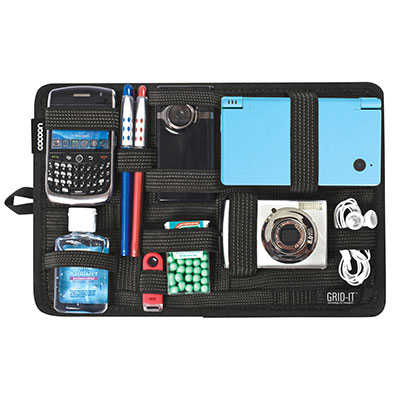
tech organizer for accessoriesI don’t attend as many conferences as some people, for sure. There are those I know who whisk off to different parts of the world to attend such conferences–I’m not quite one of those.  I’m usually going to at least 1-2 local conferences, and 1-2 not local conferences a year on average.  This year, at this writing, I’m only planning on one big conference, and namely that’s the STC Summit in a couple of days.

While I’m on these trips, I usually try to put some careful consideration into what I’m bringing with me. This year, I have my car (an SUV, no less) with me, so I can load up the car as much as I want.  But in other years, like many, I usually have to get on a plane to get to the conference destination, so taking as few things–and lighter items–is necessary.

Liz Fraley wrote an excellent article about a year ago about her Presenter’s Tech Travel Kit, and it’s pretty comprehensive.  I have most of the same items as she does. Some I don’t travel with, and some are items I still desire to add to my travel tech.

But that was written from the perspective of a frequent presenter. What about some recommendations for those who aren’t presenters, but still want to bring some basic tech with them?

I’m looking at this perspective myself, as I’m not a presenter this year. I usually have one big suitcase for clothes, shoes, things I picked up at the conference, but I also need to bring tech, since I am either taking notes, or sharing my experiences on social media during a conference. I’m still developing what works for me best, but there are a few things that I usually bring with me no matter where I go, whether I’m a presenter or attendee. There are also a few (hopefully) clever solutions to help lighten my load, but maintain some good tech.

  1. My iPad/tablet
    My iPad comes with me everywhere. I have a large, 17 inch laptop, and while it’s one of the “lighter” ones, it’s still rather heavy, and it’s a pain (literally and figuratively) to carry places.  In most instances, I don’t need to bring a full laptop computer with me, as I’m only accessing  my word processing programs (Notes or Word) for note taking, I have full access to social media apps, I can still get my email, I still have Skype–I have most of what I need to record what I need and still communicate with the outside world in my iPad.  My iPad is thin, and it’s lightweight. It’s as good as having a paper notebook in size and weight, but better.

    Someday, I hope to be able to afford one of those super sleek, thin, streamlined ultrabooks that I can bring anywhere, but in the meantime, this will do nicely. If you don’t have an iPad, an Android or Fire or other equivalent will probably do just as nicely.

  2. My Wireless Keyboard
    This is an optional one, only because I don’t have an iPad cover that is also a Bluetooth keyboard. But having my wireless Apple keyboard–or for that matter, any Bluetooth keyboard–is great because then you feel like you do have a very compact laptop with you. I keep it in a special case (similar to this one–same manufacturer, older model) that has some extra storage. (Waterfield has some nice travel bags as well.)

    But what if you have to access a “power” program due to a workshop, and there isn’t an app for that? Well, I’ve figured that out too, but it’s on a case-by-case basis (meaning there are some exceptions when I, unfortunately, do have to lug my laptop with me). I hate bringing my laptop just for one workshop or one session, when I know I’m not going to use it for the rest of the conference.  I have a solution that might work for you, and it’s worked for me.

  3. Remote Machine apps
    Yes, if you pick the right one and play with it a little bit first, there are some decent remote machine apps that will connect your tablet (in my case, my iPad) to your laptop at home. You just have to install the app on your iPad, make sure the app is installed on your laptop at home, and remember to leave your laptop on at home before you leave! I’ve played with a few.

    TeamViewer is a popular one. My husband likes that one. It’s free for individual use. There’s also Splashtop. That one, if you are travelling, is about $3/month, but it provides a good connection. I used that last year, and it’s another popular one.

    This year, I’ve switched over to a free one that’s available, and I like this one the best. It’s called VNC Viewer. There’s an app for it on iTunes, and it’ll give you directions on how to make your laptop the “VNC Server”. The beauty of this one is that it’s mostly maintained on the cloud! And it’s free for individuals! I also liked the screen resolution on this one, because it showed what’s on my laptop screen better than the others, and I could get the tapping tasks down easier than the others.  I could access those “power” apps (like various XML editors) from my home laptop from my iPad, and still do the same actions as if I were using my laptop. There might be a few tricks to use it on an iPad, but the work itself is being done on my home laptop. Cool!

  4. Skyroam Personal Hotspot device
    This is a new item that I’ve added to my collection. It’s a personal hotspot that doesn’t work off your phone, and it works internationally in most major countries.  You buy unlimited connectivity passes which last the full 24 hours.  If you buy your passes in bulk, they come out to be about $8 per day, and you can connect up to 5 devices at a time. The device is usually around $100, and comes with 3 free day passes to start. You can also rent them at airports and–I think–through the website at skyroam.com.

    Why would I need that? I bought it for a few reasons. First, during my last international trip, I found I was using the data that I had bought through my phone contract wasn’t enough for when I was out and about. It was a lot of data just trying to pull up a map and figure out where I was going! And wifi wasn’t always perfect trying to glean it off of stores or other public places. This way, in the future, I’d have this small device with me, and not have that problem anymore. Second, when we travel, my son is ALWAYS using up a lot of data so he can play games on his phone. This, again, eliminates the huge cost. The last reason I got it was that even though certain conferences offer wifi services, sometimes, well, they just aren’t great wifi connections.

    Since I do a lot of Twitter feeds and such during conferences, it’s important that I have a solid wi-fi connection. This solves this problem. I used my Skyroam at the CONDUIT conference last month, and it works GREAT.

  5. My Smart Travel Router and International Power Converters
    This one is especially helpful if you are travelling internationally, but I still bring them with me on domestic trips as well.  They not only provide international outlet adapters for other countries, but they usually have 2 USB outlets on them to charge my devices. I use these heavily– I have 3 of these, so I can charge up to 6 devices at a time if needed! One of these three is my smart travel router. The one I own is a Satechi Smart Travel Router, which you can find on various websites to order. If you have access to a network cable, this little device is marvelous. It’s not only a outlet adapter that has USB outlets on it, but it also acts as a mini wifi router when connected to a wired network.

    I’ll give you an example when it came in handy. When I went to IEEE ProComm, I stayed at one of the dorms at the University of Limerick. They had no wifi available in the rooms. HOWEVER, they did have network outlets. All I did was connect my networking cable to that outlet, plugged the other side into this Smart Router, and VOILA! I was the only one who had wifi! I was able to talk to my family on Skype at night and check on other things that required internet connectivity.

  6. Battery packs/Power banks

    Portable batteries/power banks come in all sizes. I actually bring three– two small ones and a big one. Why? I don’t want to be lugging a charging cord and power adapter for my iPad or my phone and trying to be near the nearest outlet.  These batteries can easily charge overnight, so I will charge the big one (which has two outlets for two devices) one night while I use the smaller two, and then switch off the next day.You can find smaller ones under US$10, and some of the larger, more powerful ones can get to cost as much as $70. Pick what’s whatever in your budget, and you’ll find it’s handy to have just in case. My two little ones were gifts, whereas my bigger one is one I bought for about US$25-30.  You can get fairly powerful ones these days, and find them almost anywhere that they sell phone and tablet accessories.
  7. Cables/Power Cords
    This is an obvious one. You can’t charge any of these devices up with a plug, battery, car power adapter, or wall power adapter unless you have all the right cables and cords! I always ensure that I have one for each device (for me, that’d be 2 Apple lightning cords), and at least 1-2 USB-C cords that will charge the battery packs. Sometimes you can get a power cord that powers multiple devices–a multi-port cord. I have one of those that one of the vendors gave out at a past conference that works beautifully, even with my fickle i-Devices. I keep them all together in a Skooba Design cable wrap case so I can find them easily, and it’s compact. (Skooba Design also has some nice travel bags as well.)
  8. Earphones of some sort
    I tend to bring a few things redundantly, so I do bring my regular Apple earphones with me, but I also bring my fancy Bose Noise Cancelling Headphones with me as well. The second ones are for the noise cancelling feature. Sometimes I just need to tune out, you know? (Introverts, take note!)
  9. Extra batteries
    If my Apple keyboard or the noise cancelling feature of my Bose headphones die, then I have at least one set of backup batteries (2-AAs, 1-AAA) with me. I keep them in the small case I keep my keyboard in.

That seems to cover the basics of what I find I need as a conference attendee. I don’t run out of power. I have something to take notes electronically or connect to the outside world. I have devices to help me connect to the Internet. I’m pretty much set, and it can all easily fit in my messenger bag or backpack, and still have room in my bag to collect some goodies from the Exhibition Hall.

As a presenter, I think the only other things I would bring would be some sort of an A/V adapter (see Liz’s article for suggestions–I just hook up my iPad with my adapter, and I’m good), or as is often suggested, I bring a thumb/flash drive with my presentation on it–just in case.

Between my list and Liz’s list, can you think of other devices, tools, or other tech accessories that you find that you absolutely need to bring with you to a conference? Include your comments below.

Posted in Uncategorized

TechCommGeekMom, where have you been? The Delta Quadrant?

I know you haven’t been in the Delta Quadrant. So where have you been?

OK, so it’s been a while. I know. While I wish I could say that I’ve been on an Intrepid-class Federation starship named the U.S.S. Voyager, sadly that is not the case.

It’s a little hard to be writing blog posts when a) you don’t know exactly what to say after having written hundreds of posts before, and b) you’re just REALLY busy.

2016 was a rough year, but 2017 has also had its challenges so far.  You know that I’m always in some sort of work search mode, and that’s already had its ups and downs for the past few months.  I was excited to get my first independent contract. It was an opportunity to finally flex my e-learning muscles, and do it on my terms.  I started to create a curriculum matrix,  to make storyboards, to write transcripts, test questions, and study guides, and created video training–21 completed videos in about a month. But the contract ended before the full project was completed, and I don’t know what will be happening going forward. There was a big learning curve involved, and after the fact, I’ve realized where I made some wrong moves, but I also learned where I made many right moves as well.  I’ve been mastering TechSmith’s Camtasia during this time, and feel pretty comfortable with it now. I sometimes feel I missed out on one of my many callings as a video editor (although you never know–that might change going forward).  I know that I was producing good content, if I say so myself, so I have to be satisfied with that for now.

I also was the co-chair of the STC-Philadelphia Metro Chapter (STC-PMC)’s annual CONDUIT conference.  Thankfully, that came off with few hitches, and it was well received by everyone I heard from. Some people hadn’t been to the conference in years, and it was a great opportunity for them to see how our conference has grown!  Next year, at this point, it looks like I’ll be the main chair for the event, so it’s going to feel a little overwhelming, I’m sure. Just being co-chair felt overwhelming at times, while trying to work with client deadlines. It stressed me out enough that I even got physically sick for a while. For CONDUIT, the payoff is worth it, and I hope that everyone who is reading this considers coming as a presenter or attendee for next year.

Oh, and I can’t forget that I’ve been studying my DITA by helping someone who is writing a book about it, and I was asked to contribute edits as a beginner who wanted to ensure that they understood the author’s instructions.  That was cool, and helpful.

Kim: Is she kidding us? Overwhelming?
Paris: That’s what she claims. Who am I to argue?

All through this time, as I said, it’s been a bit overwhelming. I realized some missteps with all of it the hard way, as I usually do, but thankfully I have a lot of good people who help me get back up and fight another day. (Photon torpedos are loaded, Captain.)

I spoke to veteran tech comm consultants at CONDUIT and through Single-Sourcing Solutions’ TC Conclave, as well as just talking to other technical communicators when I had the opportunity offline.  All have provided me with advice about how to move forward in the future as an independent consultant, and massaged my ego just enough, knowing how battered and bruised I felt at times.  For that, thanks to all of you. You know who you are.  This is why I get involved with the STC and with other technical communicators.  Five years of networking is finally paying off–you know me, I know you, and I can learn more about things that they don’t teach you in grad school. I benefit from your experiences and I’m grateful.

Kim: I think we should take a ship-wide survey or start a betting pool on what she’ll do next. Who’s in?

So now the question is…what do I do going forward? I’m in limbo once again with timing, figuring out what to do next. At this writing, I’ve decided to lay low for a couple of weeks. I’m concentrating on my VP duties for the STC-PMC for the rest of this program year (two more main events to go right now!), reworking my consultancy’s website (a project temporarily postponed when I started my contract in February), and doing a little bit of project hunting, but nothing too deep just yet.  I have a few leads on things, but I’ve always been hesitant to “count my chickens before they are hatched,” as the saying goes. I’m looking forward to attending the STC Summit in a few weeks in Washington, DC.  I’m getting excited about going, because I realize that it’ll be nonstop tech comm for me almost from the moment I get there! I’ll be with my tribe! I plan to take advantage of seeing all my STC friends–and making new ones as well–in the hopes that my continued networking will help me build my business. I’m looking at things through a slightly different perspective now.

In some ways, I’m still scared to death being “on my own”.  Having survived through my first experience without an agency, though, was exhilarating, and I liked being my own boss and calling most of the shots, and determining how things should be done.  I was able to validate that in many ways, I’m still on the right track, even if things are slow-going right now.

Kim: Captain, there’s something out there!
Janeway: I need a better description than that, Mr. Kim!

I still have a very long way to go, but I’ll find my way eventually. Sometimes I feel like the very green Ensign Kim, who has some knowledge, but still finding my place while trying to make a difference. Sometimes I feel like Captain Janeway, where I feel like I can lead and figure out what needs to be done. There will be Borg, Kazon, Vidiians, and Hirogen to battle along the way, I’m sure. Hopefully my persistence moving forward will get me where I need to go, even if it takes a while.

Posted in Uncategorized

Adobe Tech Comm Suite 2017 is better than ever!

technical_communication_suite_2017Recently, Adobe held a virtual press conference for the 2017 Release of the Adobe Technical Communications Suite, which launched on 31 January 2017. While the Suite continues to include the latest versions of Captivate, Acrobat, and Presenter, it’s RoboHelp (RH), the XML documentation add-on for Adobe Experience Manager (AEM), and its flagship product in the suite, FrameMaker (FM) and its related FrameMaker Server that have all received updates with this newest release.

FrameMaker itself has been around for thirty years now, but it’s been especially in the last few years that significant changes has been made to accommodate DITA support,  multi-channel and mobile publishing, and support from right-to-left (RTL) languages.

With the 2017 Release, Adobe’s main objective was to provide new features while simplifying current features that would help with productivity and keep the end users in mind.

I found that now that I have a better understanding of the structured authoring views from my recent DITA course, I could see these products with a fresher perspective while I attended this virtual press conference, and better appreciate the upgrades.

The main attraction for the virtual press conference was FrameMaker, as the product has had some major overhauls, including new features centered around the authoring experience.  I won’t go into all of the features, as there’s too much to review, but several of them made a big impression on me. FM has been a complicated tool to use for many years, but it seems to me that with each new release, the tool becomes more user-friendly for those who aren’t as deeply entrenched with all the bells and whistles. The new interface is more modern and usable, and there’s easier access to recent items through the Browse Computer or repository feature.  This gives you access to all resources like tutorials, guides, and online help. It also allows you to access structured and unstructured items in one page. Even within the Search function, there is better auto-complete functionality which shows predictive results based on user typing through responsive HTML5 output.

An important upgrade in this 2017 release is that menus have been optimized and reorganized, with more commands to improve discover-ability.  My favorite new feature within these new menu changes is that the “Special” menu is gone, and the much more logical “Insert” menu has been added. This is something that has sorely been needed for a long time to be more user-friendly interface! Why, just today I was in a different Adobe tool, and I looked to insert an image, and that particular app (a Creative Cloud app) didn’t have an “Insert” menu at all! Insert menus are commonly used in apps almost universally now, that this was a long time coming. It makes inserting objects more intuitive for an app that’s not always that intuitive. It’s one of those “DUH!” things that I’m glad Adobe has fixed for FrameMaker. The Insert menu provides one stop for inserting images, files, variables, elements, equations…you name it! For example, all that needs to be done to insert an image into a document is to go to Insert-> Image and it’s done! You don’t need DPI settings change, as the DPI settings are retained, but they can be changed. You can also do a “drag and drop” of an image into a document easily. All you do is add to your project, then drag the image into the page, and it adapts to the page. You can still adjust the size in object properties if needed. The object properties dialog is improved, as there is an option to maintain aspect ration, DPI can be set inline, and apply a check inline. The “Element” menu is also enhanced. New options have been added to insert, wrap, and change. The Insert drop down is great! It has everything you need, and will likely be heavily used.

Shortcuts for productivity got a boost, as there is a new Command Search feature that is accessed through the <F7> button and very easy to use. All shortcuts are also now listed next to menu commands so that power users can learn them more easily. <CTRL-1> provides a list of where you are within the structure of your structured authoring, which is rather convenient.  Commands that are applicable globally,  such as borders, text symbols, rulers, grid lines, and hotspot indicators that impact all open docs both structured and unstructured are viewable now, although there are some limitations with structured views.

PODS have also has some upgrades as well. A new paragraph designer table allows you to create new styles easily in the pod. Styling icons in table and paragraph designers have been replaced with labeled buttons, configurable options have been reorganized and relabeled, and redundant command operations have been removed. Additionally, adding or editing a conditional tag now happens thru a dialog. The former “Select” drop down list has been replaced by Filter icon. Color and background columns have been removed. Conditional takes are listed with their close to final formatting, with tooltips displayed for conditional tags listed in the pod.  Several catalog PODS are also redesigned, with old buttons replaced with icons. Deletion has been made intuitive by removing extra options.

These changes have allowed the project management of a given project much easier, as now it’s easier to organize content such as a DITA map, book, topic, image, TOC, or index files related to a project in a single place whereby you can drag and drop files from Windows Explorer.

Structured Authoring gets some boosts as well. The Status bar now provides information about the exact path of the current element in your structured document. You can show or hide content from the structure view for a cleaner view as you work. Some of the new Insert menu options have been added for structured authoring, such as the Insert>Cross-Reference function, which should be very handy. There is also an improved DITA Keyspace Manager, whereby  if any DITA map is opened,  it gets populated automatically in drop down. The ability to search for a keyspace by entering the 1st few characters.

To keep up with the rapid changes in technology, high resolutions displays are supported now! Support for 4K resolution is now available, and allows the application to scale automatically. No separate setting is required to adjust resolution, so icons are now more sharp and size will scale automatically with the screen resolution.

Publishing features have not been forgotten, as they include brand new responsive HTML5 layouts that are modern, frameless layouts with a redefined browsing experience, are fully customizable, and can easily match the look and feel of your corporate website template. The navigation is search driven, and you also have the ability to add favorites while still being fully accessible (508 compliant).

New publishing features include the introduction of basic HTML5 formatting without any JavaScript or layout, with the look and feel controlled by CSS. This makes publishing lightweight and easy to share.  Text searches within searchable vector graphics (SVG) can now be done, and supported in HTML5, as the information in the SVG files can be read and displayed as part of search results. Multimedia files are managed in assets folder in published output. Inline styles have been cleaned up, including the introduction of a setting for Excel inline styles from published output. You can publish topics to a single folder–an important organization feature. Content personalization has been improved with DITA attribute support in dynamic content filters in the indexes, and a new dialog has been introduced to select conditional attributes.

Wow, that’s a lot right there!

All these changes are great for the FrameMaker app, but what about the FrameMaker Publishing Server? No worries! The 2017 release of the FrameMaker manage remote publishing, and can publish bi-directional content across formats and devices, so it can integrate with any CMS.

RoboHelp has brand-new, responsive HTML5 layouts as well, also incorporating modern, frame-less layouts with a redefined browsing experience that’s fully customizable. The Search autocomplete is also functional here in RoboHelp as well, allowing for search in responsive HTML5 output that shows predictive results based on user typing by segment first–which is a unique feature, gives contextual results, can indicate the number of occurrences of an entered word or phrase which helps in narrowing down the matching results, and can even correct spelling mistakes as you type in the search. The new authoring features include thumbnail support for images, folder imports for baggage files, and variable view toggling.

The Adobe Technical Communications Suite 2017 Release (TCS 2017) includes these latest versions of FrameMaker and RoboHelp, as well as the latest versions of Acrobat Pro, Captivate, and Presenter, which went bought together in the Suite, provide a 58% savings over buying the tools separately.

While not formally part of the Technical Communications Suite, it’s also important to mention that the Adobe Experience Manager (AEM) XML Documentation Add-On 2.0 version has been released.  If you are using AEM as your CMS or CCMS, you can host your tech and marketing content that’s written up in FrameMaker more easily through the integration of this add-on.  This add-on allows for content sharing and reuse which lends itself to consistent user experience and reduced total cost of ownership. Higher content velocity helps to drive enterprise publishing features, such as batch publishing, baseline publishing, and post-publishing workflows. Enhanced review and collaboration capabilities include web-based inline review, web editor enhancements that help with content management capabilities and document life-cycle management.

If you want more information about TCS 2017, you can click on the Adobe advertisement in the right column, or email the Adobe TCS team directly at techcomm@adobe.com.

Additionally, there is a 2017 Release Launch Webinar on 15 February 2017. It’s free! Learn more and register for the event on the Adobe Event website.