Posted in Uncategorized

Death of the Desktop and Gaming as We Know It

deathofthedesktopIn the past week, I’ve made two observations about how technology is going through an advancement surge. What I mean by that is that there are big changes happening, and it seems like it’s happening incredibly quickly–at least in my eyes.

The first occurrence was last week. My dad called  us because he knew my husband and I had something he didn’t have–more computer knowledge than him. I found it a little ironic, my dad was my first computer teacher in the early 80s when Apple II first came out. My dad, being an educator, was progressive enough to know that these were going to be the wave of the future, and in some respects, he was an e-teacher–an early computer teacher. But here was my first computer teacher asking for help. He admitted that he had let his skills lag, and he was now “a dinosaur”, and didn’t have a clue what he was doing anymore. His desktop had died, but he wanted to retain a lot of information that was still on his old hard drive. My husband declared the desktop was indeed dead,  and suggested that if my dad bought a new desktop, we could probably install the old hard drive as a secondary hard drive in the new computer, and that way he could still access the information.

I took my dad to the local Best Buy and Staples to do some comparison shopping. What struck us both is that there were next to no choices at either store for desktop models. Almost everything was either a laptop, a tablet, or one of those sleek all-in-one units. Considering that my dad wanted and needed one of those BIG desktops–not one of the compact ones, the choices were even more limited.

The irony was that once we brought the desktop back to my house to see if we could install the old hard drive into it, we discovered that it didn’t have a bay inside the casing to accomodate it, but it also essentially only had a motherboard, a power source, a fan, a Blu-ray disk drive, and the hard drive inside. That was it. It was a LOT of wasted space for something that was fairly powerful. The machine also came with the “blessed” Windows 8. I’ve had my hesitations about upgrading to it myself, but my dad had no choice, and the poor chap has been using only Windows XP and Windows 2000 up until now, so he was REALLY behind. Our solution to the hard drive issue was that my husband bought a contraption that you can enclose the old hard drive in a special case, and it turns it into a USB-connected external hard drive. So, that part of the problem is solved.

The Windows 8 solution is not. Dad is struggling to figure it all out, and is perplexed at how Windows 8 works in general. He’s not up to speed with the idea of using cloud-based apps for anything, or even using cloud-based storage.  Since my husband and I are still using Windows 7 (and we’re safe for now), we can’t advise him on how to use it, even though we can give him some advice on apps and cloud-based apps in general. What’s frustrating for my dad is that my mother is even less computer literate than him (she’s been condeming computers for thirty years now), so she’s REALLY thrown by how to use Windows 8. I sent Dad some online resources including an e-book on how to use Windows 8, and he bought another book, so hopefully he’ll be the expert soon enough.

The second indicator to me that things were changing technologically was the closing of our local GameStop store. Now, to be fair, I live in a very small town–one that’s small enough that I questioned why we even had a GameStop in our town to begin with. We liked that store better than the one at the local mall because we got more personalized service, and we liked the staff there. I was only surprised to see that it had disappeared almost overnight the other day when I passed by the shopping center where it was located. I’m sure the store didn’t get enough traffic to warrant it to stay open, so that wasn’t a surprise. I was just surprised that it was done without a lot of fanfare. Related to that, since the store wasn’t there, my son was itching to get a new game for his Nintendo 3DS, and we ended up looking online for choices. Granted, my son is fussy about what games he likes and doesn’t like, so choices seemed slim. But even from my own tastes, it seemed like there weren’t a lot of choices. Here was a portable gaming system that didn’t have many games, even though it’s the most current Nintendo portable gaming system on the market. That didn’t make sense to me. As I later found out, Nintendo is working more and more on putting out games that can be accessed through the 3DS’s wi-fi connection–in other words, accessed through cloud services, and saved on the device’s flash drive or on the SD card that you can install. THAT’S where all the new games were!

As I thought about my dad’s predicament in catching up to the 21st century and my son’s need for more games, it occured to me that more and more access to media of any kind is becoming dependent on mobile services and cloud services.  Really–think about it. As I was finding out from my dad, he could only install or update his Microsoft Office if he subscribed to Office 365–the cloud service. Microsoft has adopted cloud services to deliver its services, as has Adobe. Subscription services are pretty much the main way–and soon the only way–one can get access to this software and applications. It’s rare that anyone gets DVDs to install software anymore–it’s downloaded off the Web now. The same thing was happening with my son. He had better access to games for his device through Nintendo’s cloud services than if he paid for a micro-disk.

These are only two of several observations I’ve made lately that we’re going through a technology surge of sorts that are making what we’ve known and loved for years are quickly becoming obsolete.  Tablets, smartphones, and laptops are pretty much the standard now, pushing mobile to the forefront even more. Touch technology is becoming more prolific, even for the all-in-one desktop computers that are out there, putting it on the same level as its mobile counterparts.  Even the gaming world is getting the clue, with more games downloaded to smartphones and other mobile devices rather than buying the software.  Who buys DVDs or Blu-ray disks anymore when we can download movies and other videos from Netflix or iTunes?

Cloud-based and flash-memory based technology seem to be taking over! Soon enough, DVDs, CDs, and SD cards are going to obsolete like the 5 1/2 inch floppy disks, VHS tapes, tape reels or punch cards! Seriously–think about it–in a year or two (okay, maybe a little more than that), all those things might be GONE.

It’s great that technology is advancing in leaps and bounds like it is. No one is more excited about these advances than I am, in most cases. But I wish I could keep up sometimes! It makes me feel bad for my dear dad, who is getting left in the dust by these advances.  I’m sure he’s not the only one.

Posted in Uncategorized

Word Up! ain’t just a Cameo song: A TechCommGeekMom book review

Cameo-Word_Up!Being that I came of age in the late 1980s, my immediate thought when I hear the words, “Word Up!” is the Cameo song playing with all its funkalicious glory.  But now, “Word Up!” has a new meaning for me as well.

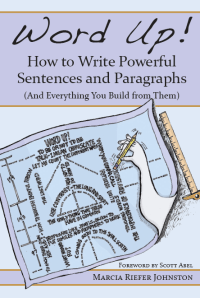
I’ve just completed reading an advanced copy of the book, Word Up!: How to Write Powerful Sentences and Paragraphs (And Everything You Build From Them) by Marcia Riefer Johnston. Marcia and I met back at the Adobe Day event at Lavacon last October, and since then we’ve bonded over several interests, including our love of writing. I had first heard that Marcia was in the process of writing this book during the Adobe Day event, so when she asked me to read and possibly review the book, I was thrilled that she considered me as someone who could provide a constructive critique. When she sent me the copy, she stipulated, “[Please write] any kind of review you feel inspired to write: short, long, thumbs down, thumbs up. Or write nothing. No expectations, no strings.”

WordUp-cover-AFTEROkay, Marcia, I’m going to take you on your word about that!

So, I prepared to truly dig in to see if I could pick this book apart, and to find reasons why someone should read this book and have it in his or her library of writing resources.

Unlike most readers, I do have the advantage of knowing the author, so I found myself reading the book in her voice. Even if I hadn’t heard Marcia’s voice in my head, the casual, jovial tone and language she used throughout the book sounded very natural to me. Someone who has never met Marcia will enjoy this book very much as well, and would read it the same way I did. I enjoy her casual approach to this formal subject, and her sense of humor was infused into each chapter!

Marcia wrote in her chapter titled, “Mastering the Art of Knowing Your Audience”,

“…I find it satisfying to write for a reader whom I can imagine fully and accurately. Writing for someone I know–someone real or imagined, someone just like me in many ways or in few–is like making a gift for a friend. While I’m working on it, whatever it is, I confidently imagine the recipient opening it and saying, “Yes!”

I am happy to say that I had this “Yes!” response she described as I read this book. I write as if I’m talking to friends that share the same passions as I do, so to read that Marcia composes her words in the same way as I do was a revelation, and I was glad to see she made this recommendation.

Throughout the book, Marcia addresses common sticking points in writing as well as some that are not quite as obvious. One of the difficulties in reading any style guide is that the information can be rather dry since it is very factual. Dry and factual can be boring. Fortunately, Marcia doesn’t do this. With each chapter, she paints each new layer upon the last one, slowly building upon each topic so that the reader can see the big picture that writing is full of color and light. She uses everyday and personal examples which illuminate the point she’s making for a particular chapter much more apparent. In the process of reading this book, I ended up learning several tips that have helped me fine-tune my own writing.

Word Up! starts with a section that addresses common grammatical errors that just about everyone uses in one way or another.  Once those details are conquered, the second section of the book takes the basics up to an intermediate level, where further common grammatical errors, sentence structure, and paragraph building are addressed. The last section of the book ties everything together, teaching the reader how to be his or her own editor, and learning the fundamentals of technical writing, even for a creative writer. The last chapter itself shows Marcia dissecting one of her own essays apart using all the tools provided in the book. (Sorry for the spoilers!)

I’ll give you an example. How often, either in speech or writing, do you use the word, “just?” I have to admit, I do it ALL the time. It seems like a catch-all to emphasize the immediacy of an event’s occurrence. Marcia shows the reader how to avoid using the word as often as possible. Some other themes covered in the book include the proper use of metaphors, how to use contrast in a sentence, how to avoid the verb “to be” and most of its conjugations whenever possible, writing for one’s audience, and the importance of continually revising one’s content.  While these topics are just a sampling of what Marcia covers, there is so much more!

As you may or may not know, I teach a technical writing class on behalf of World Learning to students from various Microsoft offices in Asia. While I was reading Word Up!, I kept thinking that this would be a great book to recommend to my students. My students are often technical managers who are seeking some help to sharpen their business and technical writing.  World Learning has provided me with a great curriculum that I have found to be very thorough, and actually ran parallel to the information that Marcia provided in Word Up!. In fact, Word Up! provides more information in a compact volume than I do over the weeks that I teach the course.

I’m definitely going to add this book to the resources list that I provide at the end of the course. I know it will supplement the classwork effectively in a highly approachable manner that will be easy for my students to understand.  Having the reinforcement of the material in a relaxed, humorous, and informative way will help the students retain the information much better than remembering my lectures alone.

So, as you build your writing resources library to include copies of the Chicago Manual of Style, Strunk and White‘s Elements of Style, and Fowler’s Modern English Usage, be sure to add this new book to the collection. I guarantee you will find it an incredibly accessible writing resource, and I suspect it is destined to be one of the classic style guides in years to come.

The book will be released on April 27, 2013, which is also National Tell A Story Day, and available through Amazon and other fine book retailers. Click on the title below to find out more information about how to order this fine tome.

Word Up! How to Write Powerful Sentences and Paragraphs (And Everything You Build from Them)
ISBN: 978-0-9858203-0-5
Publisher: Northwest Brainstorms Publishing

**Disclaimer note: I did not receive any compensation for writing this review, and did my best to provide an unbiased review even though I know the author. **

Posted in Uncategorized

My response to RJ Jacquez’s question: Will Tablets replace PCs?

Recently, due to the upcoming release of Microsoft’s Surface machine, RJ Jacquez released two blog posts promoting the idea that tablets, in time, will indeed replace the PC as we know it, and that Microsoft is going in the wrong direction with this Surface device. Between his post titled, “For the sake of ‘Mobile’ I hope Microsoft Windows 8 and the Surface Tablet fall short” and Tablets Will Replace PCs, But Not In The Way You Think, he says that he feels that Surface is not taking us forward because it embraces the idea of adapting our devices to old software, instead of moving forward with mobile devices and rethinking how to create new productivity software for these new tablets that can make users more productive.  After paraphrasing several articles that have been out in the press that claim that productivity apps such as Microsoft Office, Photoshop, and Final Cut Pro (to name a few) are items that need to be addressed by the tablet industry, he counter argues,

Personally I think that most of these articles miss the bigger point, namely the fact that most people think that Tablets replacing our PCs will require a 1:1 task-replacement approach. I don’t buy this argument….In other words, we are currently shaping our mobile tools and soon these amazing devices, along with the incredibly creative apps that accompany them, will shape us and redefine every single task we do from here on out, including learning design, image editing, web design and yes every productivity task as well.”

I understand what he’s saying. If I’m interpreting him correctly, his argument is that devices like Surface should not be adapted to run bloated “power” software that needs the extra storage and peripherals to work, thus making the devices less mobile, but rather software should be streamlined to become more efficient so it can run in a tablet like an iPad which doesn’t need extra storage because it relies on the Cloud nor does it need any other peripherals to function. Some of the other “power” apps that RJ mentioned that critics think would need PC power include Photoshop, Microsoft OneNote and Avid Studio.

Well, I do have to agree with RJ insofar as I think that mobile is the future, and it is forcing us to really look at software and its limitations, and it’s making us think about how to streamline processes and our needs. mLearning is in the midst of a huge revolution due to that mindset right now. And actually, there are tablet versions of Photoshop, MS OneNote, and Avid Studio available for tablets that cover most of what users need. So it’s not like these kinds of software can’t be adapted for most people’s uses.  The average user does not use Word or Excel or Photoshop or other apps the same way as a power user, so streamlined apps are fine.

However, I think there may be a need–at least for a little while longer–for PCs to still exist for other kinds of “power” uses. The first thing that comes to mind are apps that are not as mainstream as the ones mentioned so far. Tech comm apps like Framemaker, RoboHelp and Flare are the first ones that come to mind. Now I know that Adobe is working to put just about all of their major software products on the cloud, so that’s a move in the right direction. I have no idea if Flare or the other leading tech comm productivity software packages are moving that way as well. The same thing with e-learning software…again, Captivate is part of Adobe’s cloud-based Technical Communications Suite 4 right now, but what about Lectora or Articulate or other instructional design software packages?  These are all software programs that aren’t quite ready for tablet use yet, but for the sake of mobile productivity, it might not be a bad idea to move in that direction. But for now, staying as desktop apps is probably fine.

There’s an app called Cloud On that has the right idea. It’s an app that’s available for both iOS and Android use, and essentially it provides a means of accessing full versions of Microsoft Office on tablet devices, and then saving documents in a Dropbox, Box or Google Drive account. No short cuts here! Full functionality of the software, on the go!

So, why aren’t the all the big software companies jumping onto the bandwagon with this? Apple already has by creating tablet versions of their iWork and iLife apps, but what others? Some companies have taken baby steps, or are working on it, and others…well, I think they are not keeping up, or are in denial that having a lean version of their software is needed.

I can say, as I mentioned, that I’ve used Cloud On, but I’ve also used my iPad’s Notes app. I used the Microsoft OneNote app on my iPad heavily last year during grad school, as I would start my homework assignment on my iPad during my lunch hour, and then sync it in my SkyDrive account so I could access it from my laptop at home to finish an assignment. I recently used Photoshop Touch on my iPad when I was too lazy to power up my laptop one night to fix a photo for a friend.  When I’ve made movies or did any digital photography projects, they’ve been done more on my iPad than on my laptop due to more affordable choices that meet my basic needs for editing.

So, my answer to RJ’s question is that I feel there will still be some apps that will need a PC to do much bigger jobs. Desktops and laptops are our workhorses right now, and you wouldn’t ask a pony to do the work of a Clydesdale horse. The PC isn’t going away anytime soon, and it will remain the hub of business and other work for some time to come. But, I agree with what RJ said, that in looking forward to the future, we need to continue to think mobile and how we can make it work so that much of these workhorse products can be made more lithe and flexible to our needs.

One last thought to put the mobile/tablet point in perspective–if you are a Star Trek fan like I am, you will have noticed that everyone carries portable devices–the size of a tablet, e-book or smartphone– to access huge databases and information, and to do much of the “heavy” information lifting for anyone aboard a starship. This was depicted on the shows well as much as 25 years ago, before the advent of tablet devices and smartphones. Think about how the various characters on the show used their devices. They would tap into a main computer device on the ship–much like we would access a network or the Cloud–to obtain information and make various calculations as needed.

It would seem to me that we are getting closer to that kind of scenario in reality, but we’re not quite there yet. We’re getting close, though!

Posted in Uncategorized

Using the Cloud–The Real Deal.

As a follow-up to my post about the scamming/hacking attack I had two weeks ago, this week I’m turning TechCommGeekMom.com over to a good friend of mine, Shay Shaked. We first met in grad school at NJIT as classmates, and have been friends ever since. Shay is more of a technology geek than even I am, so when my system got hacked two weeks ago by the phone scammers, he was one of the people who offered me some good advice and pointers along the way to my laptop recovery. I asked him if he would share some of the wisdom that he’s shared with me with my TechCommGeekMom readers, and he said, “Of course!” Here is TechCommGeekMom’s first guest post! It’s a little long, but I encourage you to read the entire thing– good stuff!

–TechCommGeekMom


Two weeks ago, TechCommGeekMom fell victim to the hands of a malicious scammer who managed to access her computer remotely by talking her into believing he was actually a Microsoft employee. The scammer was smart, confident, and very efficient. Reading through her post sent shivers down my spine (as a matter of fact, I am backing up my files as I’m writing this post) and made me realize that we are all vulnerable, especially these days, when technology is everywhere and computers have to be used on a daily basis.

TechCommGeekMom was able to recover rather quickly. The first thing she did was to share her experience with us, so we could all learn from what happened. She also shared a few tips about security of private information, and asked me if I would like to expand and talk in length in this post.

Today, security does not have to come at the price of convenience–quite the opposite. I have switched between four different computers in the last five years, and the transition to the cloud made each switch easy and painless. But the real benefit of cloud apps, I’ve discovered, is in added productivity. I am going to introduce some of the popular cloud services (and some less well-known ones) from the perspective of a paperless, digital person. I hope that when you’re done reading this post you will at least be convinced to give these apps a try, if you haven’t already.

Google Drive

Google Drive’s most important feature, in our case, is its ability to replace Microsoft Word, Excel, Powerpoint and even Access, for free. Throughout my time as a graduate student on a tight budget, I calculated I could do more than 90% of my work using Google Drive’s documents.

Google Documents now features two additional important features that makes it even more effective. It has an offline mode, which allows one to create and edit files even without internet connection. It also has a research pane which allows you to research your topic (via a search term on Google) from inside the document, and add whatever reference one may find directly into the document’s reference list in APA style.

Google gives users 5GB of free space to begin with, and documents created inside Google Drive do not take any room. This includes small pictures included in saved documents, such as background for presentations, mugshots, or logos. Additionally, Google Drive makes sharing or sending files to other people incredibly easy, even if they do not have a Google account! Documents can even be sent from within Google Drive as an attachment (.doc, .docx, .pdf and more) directly to an email address without downloading anything, so no obnoxious email attachment on your end.

Evernote

As great as Google Drive is, it is not the best place to upload files and scanned documents. Google Drive’s interface is still too clumsy to be used for organization, and I often need t search for what I need. For scanned documents and quick notes, I use Evernote.

In my opinion, Evernote is the best place for PDF files. Evernote’s excellent tagging system, flexible folders and powerful search (which can read texts from inside images) is exactly what’s missing from Google Drive’s system. I use it to save anything from receipts (using my phone to take snapshots) to a copy of my driver license (I will explain how I protect sensitive documents shortly). It is extremely easy to email documents directly from the app to someone’s email.

Evernote comes in a free version which allows users to upload up to 60MB per month, or a paid version that allows up to 1GB per month with many additional benefits. I have used the free version for a while and never ran out of space allowance.

Important information tip 1:

One of the best ways to protect your personal information is to keep it separate from your “public” information. It just so happens that Evernote and Google Drive create this separation for me automatically: anything that I need to share, publish, or have others edit and work on, is on Google Drive, while all my personal documents and more sensitive information is stored in Evernote. This means your personal files are stored under different username and a different password (because you do use different credentials for each website, right??)

Adobe Acrobat Reader

Adobe Reader is mentioned here because the newest versions come with a very simple, yet powerful feature: the ability to sign your name electronically directly into the PDF file. In the past, I had to download the PDF file, print it, sign it, scan it, and then send it back as an attachment. Not any more. Today I open my PDF file, sign my name, save it (to Evernote) and send it. Done.

Information tip 2:

When you’re not sure what kind of file to send your document in, use a PDF file. If you don’t know what Word version the HR department has, or you want to make sure your resume looks on their screen exactly the same way it looks on yours, send a PDF. PDF files also happen to be the easiest to open, encrypt (protect with a password) and are the industry standard for scanned papers and official documents online. Make sure you have the most recent version of Adobe Reader installed and save yourself the headache.

FoxyUtils

FoxyUtils is a website that does one important thing: it protects your PDF with a password. Upload a file to FoxyUtils, and choose to restrict the file from opening, printing, and copying its context to the computer’s clipboard (which means, no copy-pasting). FoxyUtils also allows users to split one multi-paged PDF into several PDF files, or do the opposite by combining several PDF files into one big PDF file.

Information tip 3:

I believe my personal information is safer inside a password protected PDF on a protected server in a locked building than it is in a drawer at my desk. If you’re serious about using the cloud to store your files and using PDFs, I recommend buying Adobe Acrobat (not just the free reader), which comes with additional features, most notably, better encryption. Keep in mind though that if you password protect your file, programs such as Evernote won’t be able to read its content and make it searchable, as it would with non-protected files.

Hardware – The Non-Cloud stuff for the Cloud

1 – Scanner

Most people would assume an external hard drive with good encryption is the best and safest way to store sensitive documents. In my opinion, that’s a bad mistake to make. The most important thing to consider about your information safety is a scanner.

If you don’t already have one, you can probably find an all-in-one printer (a printer, scanner fax and copier) for a price tag of less than $50. Most printers also ship with software that allows users to quickly convert scanned documents into PDFs, but even without such software, users can quickly upload a file into Google Drive and download it as a PDF if needed.

Information tip 4:

Why a scanner? Because prevention is the best form of protection. Your computer should never store your important documents, and an external hard drive with these documents available is nothing but an extension of your computer. You might as well just glue a glowing sticker to it saying, “My most important information is in here!” Remember, when you store sensitive documents on your computer you’re not only putting yourself at risk, but also others whose information is on these documents as well.

2 – The Backup External Hard Drive

The second device you want to have available is an external hard drive for backups. There are two very important rules when it comes to backup hard drives. First, don’t use the backup hard drive for anything else but backups. Second, don’t use the backup hard drive for anything else but backups.

Your external hard drive should be connected to your computer periodically to store files that are either in the cloud already, or on the way to get there. It is a secondary stop; it is an emergency storage in case you have no connection to the internet–like an airplane black box. And, it should be treated that way. Do not use this hard drive to store anything else under any circumstances.

Why am I so strict about this? Because the second you start using your backup hard drive to store music, movies and pictures, it is the second it ceases to be an “in case of emergency” black box and becomes an entertainment storage unit. Soon after, you will start to taking it to work, and your crucial information will be moving along with you in a storage unit that isn’t meant to handle traveling. You could actually severely damage your hard drive by shaking it too hard, not to mention, forgetting it or losing it. Leave it at home on your computer desk, where it belongs.

Information tip 5:

Not storing personal information on your computer means not storing it on your backup hard drive either. If you use a cloud service that downloads files into your computer (like Dropbox), do not use this cloud service for your sensitive information. Remember, your information is and more available on the cloud.

Information tip 6:

A couple of years ago someone came up with the genius invention: a USB drive. To this day, despite the millions of cloud services out there available, there is no more reliable and simple way to keep files you need. An 8GB USB drive is available today for less than $20 (and you can probably get one for less than $10 if you don’t need so much room). That size is enough to store about 2000 songs, or about 7 high-definition movies. Never store your sensitive information on a USB drive! If you need to send someone sensitive information, make sure it’s in encrypted PDF file, and send it directly from the cloud.

Private Information Hard Drive

No matter how secure the cloud is, some information is simply too private. In that situation, I suggest getting an additional, smaller hard drive that can be easily carried and encrypted. A good example for a hard drive for traveling is Western Digital My Passport line. These hard drives do not require a separate AC connection and built with less movable parts that can get damaged. They are also small and light enough to fit in your pocket. Do not mix this private information with your other personal information. Your driver license, passport and tax returns do not belong there.

Shredder

No home-office today is complete without a shredder. No matter how technology savvy and paperless person you are, chances are that some company (especially bank and utility companies) still insist on sending paper statements. These are dangerous and can lead to identity theft if not disposed of correctly. Do yourself a favor and spend the $30 or so on a simple shredder. Not only will you feel safer, you will also save room in your trash bin and become more recycle-friendly. Get rid of any copies of documents you have laying around. After all, a new copy can always be printed .

Some Final Words of Advice

These suggestions are probably not the only ones out there, but they are based on years of personal trial and error experience. Each one of the apps mentioned have many more features than what is covered in this post.

One area not mentioned as it would require a whole blog post to itself is smartphone security. Smartphones, if used correctly, can be an additional security measure and a crucial addition to cloud capabilities, especially if the goal is to go completely paperless. Investing in a smartphone doesn’t have to be expensive, and it can save users a lot of time and frustration.

Use your brain. Learn to create hard-to-guess passphrases, and remember to change them periodically. Most hackers out there still use brute-force methods to break passwords, which means they would use a software to guess any possible combination of letters and numbers until they get it right. If you use a 20-character passphrase, you are probably much safer than using a 4-digit pin number. Wipe out your computer regularly, and restore your files from your backups. This will not only make your computer safer, it would also keep it faster and free from malicious software. Protect your computer with a screensaver password, so every time you get up from your computer and leave it for more than 5 minutes, it would require a password to resume using it. Never store any passwords in your web browser–you would be shocked to know how accessible these passwords are. Create a guest account on your computer and log out of your account before handing it out to a friend, a coworker or your children–especially your children. Children are smarter than you think and they will snoop around, out of curiosity.

I hope this post was useful to you! If you have any questions, suggestions or any words of feedback, feel free to contact me at my blog, blog.shayshaked.com.


Shay Shaked is an aspiring teacher and educator, specializing in technology and special education. He is currently a teacher at the innovative New Shul School in NYC, and pursuing two Masters degrees, one at NJIT in Technical Communications, and the other at Touro College in Special Education. Shay is also a personal communication and health enthusiast, and blogs about these topics at his blog, blog.shayshaked.com, on Twitter as @blueeyednyc, and on Google Plus.

Posted in Uncategorized

A bold move into the wild blue yonder, aka the Cloud!

After my recent run-in with scammers, I’ve now come to better appreciate cloud computing and everything that is has to offer. It’s not that I didn’t appreciate it before, but in having to restore several items and back up others very recently, I was glad that I had several cloud storage accounts set up, and that much of my software could be restored easily because I had downloaded them from cloud accounts. Some of the programs on my laptop which I didn’t worry about included most of my Adobe software. Why? Most of the programs I use were downloaded through the Creative Cloud 6 subscription I have. I’m glad I made that move, instead of getting the disks. Not that the disks would be bad–they would do the job too, but at least I’d have the latest and greatest on my system, no matter what.

Well, I was just reading on Twitter from @saibalb79, @maxwellhoffmann and @AdobeTCS that the Adobe Technical Communications Suite 4 is cloud-bound! I think that’s awesome, really, and rather forward thinking. It supports mobile initiatives for some computers, like the impending Microsoft Surface, to be able to access the information more easily, but also for the rest of us as well. It appears that the subscription is offered either monthly at US$99.00 per month, or when signing up for a one-year plan, it would be US$69.00 per month. That seems like a pretty good deal if you ask me! Since I already have a copy of TCS4, I won’t need to subscribe for a while, but for those who have not upgraded yet, this seems like a great opportunity.

I think what’s also great about this is the fact that it works well with the idea of using Creative Cloud 6 apps in conjunction with the apps in TCS4. Imagine…always being up-to-date because you have subscriptions. I know that Microsoft is starting to promote this concept more as well, but knowing that Adobe is trying to stay on the cutting edge and keep up with technological needs and taking advantage of the cloud more and more is rather proactive thinking, in my opinion.

You can find out more by checking out Adobe’s website at this link: adobe.ly/Qp18q9.

Now tell me, do Flare or Doc-To-Help, or any of those other tech comm software suites offer cloud services like this? Let me know if I’m missing something…I’ll gladly present those to my tech comm readers as well, but I haven’t heard anything as of yet…